How to Improve Your Zendesk AI Resolution Rate (Without Replacing It)
Work out why your Zendesk AI resolution rate is low in an afternoon. Six checks on screens you already pay for. Most of it comes down to help center coverage.
Summarize with AI
The number in your Zendesk AI agent report is lower than you expected when you switched it on, and the bill still arrives on the resolutions it does close. You have a help center someone built two years ago, macros nobody has pruned, and tickets arriving at much the same rate as before. In most of the accounts I see, the cause is coverage: the AI is answering from a narrow slice of your help center. Working out which slice takes an afternoon, on screens you already pay for.
You run this diagnosis inside the Zendesk account you already have. If you have already decided against Zendesk AI and want a third-party one in its place, we wrote that walkthrough separately.
You will need admin rights in Zendesk, plus a month of agent data nobody has been fiddling with. A couple of the sharper screens are locked to higher plan tiers. Budget an afternoon for the audit, then a month of watching the number move.
What do you need before you start?
Most teams have all of this already. Work down the list before you block out the afternoon (your plan tier decides how much of the audit you can run).
- Permissions: a Zendesk admin role, and Zendesk is blunt about it: "You must be an admin to view the automation potential report."
- Plan tier: the automation potential report and the AI agent reporting dashboard are available from Suite Team and Support Team upward. The in-ticket knowledge panel in Step 5 needs one tier more: Suite Growth and above, or Support with Guide Professional or Enterprise. On Suite Team you can do Steps 3 and 4 and not Step 5.
- Data prep: the automation potential report reads your last 90 days of tickets and refreshes weekly. Zendesk warns that "you might not see report results if you've opted out of Zendesk AI features or if your account is a trial account, has fewer than 90 days of data, or doesn't have enough relevant ticket data in the last 90 days." Results are also split by brand (Zendesk allows one AI agent per brand).
- One thing to check first: whether you are on the Essential or legacy AI agent. Zendesk has that tier on its removal list. Everything below still applies, but read the last section before you spend an afternoon tuning it.
- What you can skip: rewriting the help center. Nothing here asks for that, and the two steps that touch content tell you which articles to touch.
How to improve your Zendesk AI resolution rate, step by step
Each check has one Zendesk screen where you run it. Take them in order (a fix at Step 2 changes what Step 3 shows you).
| Check | What you are looking for | Where you do it in Zendesk |
|---|---|---|
| Step 1 | Whether the headline figure is verified resolutions or contained ones | The AI agent reporting dashboard, under Reporting in the left sidebar |
| Step 2 | Articles the AI cannot see, and answers nobody ever connected | Article viewing permissions, and your connected knowledge sources |
| Step 3 | The questions it is losing, per article and per topic | The "Knowledge sources" report, then the automation potential report |
| Step 4 | Topics your help center cannot answer at all | "Generate article draft", on the automation potential report |
| Step 5 | The answers your agents type by hand every week | Knowledge in the context panel (Suite Growth and above) |
| Step 6 | Questions it should never attempt, and handoffs firing too early | The AI agent's Settings tab, and your escalation flow |
Step 1: Read your real number, and check what Zendesk counts
Start where I always start: the AI agent's scorecard. "The dashboard is available under Reporting in the left sidebar." Zendesk updates it hourly. The Overview tab has "Total conversations", "Understood conversations", "Unassisted conversations", "Assisted escalations" and "Automated resolutions". That last one is your rate.
Now look at what is inside it. Zendesk splits automated resolutions into three tiers, "Assisted escalation", "Contained resolution" and "Verified resolution". When a conversation ends, Zendesk asks a model to read the transcript and confirm the customer's request was resolved (the same check, whether the conversation ends up contained or verified). A "Contained resolution" is one that did not pass it.
Read the tier split before you report the number. And the figure trails: on messaging a conversation ends two hours after the last message by default, on email 72 hours after the last email (so an edit you make on Monday shows up late in the week).
Deflection, containment and resolution each mean something different, and we have a separate explainer covering all three.
Step 2: Check what your AI agent can actually see
A published, well-written article can be invisible to the AI answering your customer.
The AI answers as the viewer. "Restricted articles are used in AI-generated answers only for end users whose user segment(s) match the article's view permissions." An article limited to signed-in customers is therefore invisible to the AI whenever it answers a visitor who has not signed in.
Permissions are set per article rather than per section, so a section or category only goes dark when every article inside it is restricted. When I need to change a whole section, I filter an article list by that section and update the permissions in bulk. The one switch that hides everything at once is "Require sign-in" on the whole help center.
Open a few of your best articles and look at the Placement panel. The viewing permissions block has "Only visible to selected user segments" against "Signed-in users" and a public setting, and one wrong choice there costs you the article.
The other half of the question is what was ever connected. If your best answers are in a second brand's help center, an internal wiki or a shared drive that was never wired up as a knowledge source, no amount of editing will move the rate. Our complete guide to the Zendesk AI agent covers what each tier reaches. Then read the articles themselves, because in our experience a bad answer usually comes from one that is out of date, ambiguous, incorrect, or conflicting with another.
Step 3: Find the questions it is losing
Read the failures, starting with the "Knowledge sources" report on the "Contact reasons tab" of the reporting dashboard. It "shows a table of imported knowledge sources and their respective performance", scoring individual articles on "Usage", "Escalated conversations", "Automated resolutions" and "BSAT" (also a card on the Reporting Overview tab). The report lists the knowledge sources that were actually imported, so content you never wired up as a source isn't in it (worth remembering when the report comes back suspiciously clean).
Then open the automation potential report. "In Admin Center, click AI in the sidebar, then select AI agents > AI agents." Next, "Click View automation potential." Two tabs do the work (open both). "Covered by knowledge" lists the topics you could already be resolving from what you have, which separates a coverage problem from a configuration one. The second tab "shows the topics customers are asking about that can't currently be answered based on information in your help center."
Work top down. Zendesk labels each topic high, medium or low impact based on its estimated automation rate, and tells you to start with the high-impact ones. "View sample response" shows you how the AI would answer that topic today. I read that sample before I pick a topic.
Guide Content Cues has gone. Zendesk lists it by name on its removal list.
Step 4: Close the coverage gaps
You are already on the right screen. On that second tab, hover a topic you want an article for and click "Generate article draft". Zendesk opens the Knowledge article editor with a draft written from your ticket data.
Review and edit before you publish, because it was written from tickets and it will read in your team's shorthand (the acronyms your customers have never seen). Once it goes live, "your AI agent can begin using it to generate answers to customer questions after it has been reindexed by your help center, which usually takes a matter of minutes."
Zendesk also warns you about visibility at exactly this point. Restrict what you have just published and you are back to the Step 2 problem.
Zendesk's standard for AI-readable content is worth keeping open beside the editor. "Create self-contained content", so the whole answer sits in the article itself. And "Avoid using tables", because the model reads sentences more reliably than cells.
Where the gaps run across many topics at once, Zendesk's Knowledge builder is the bulk route, and it still puts a review step in front of you. For the article structure and the writing patterns, we have two guides.
Step 5: Turn what your agents already know into articles the AI can use
The answers your team types by hand every week are usually the answers the AI is missing. I go after those first, and this step captures them from inside the ticket as they are typed.
Switch the panel on first. "In Admin Center, click Workspaces in the sidebar, then select Agent tools > Context panel." Then "Turn on Knowledge". After that your agents can search the help center without leaving the ticket, see suggested articles against the ticket content, flag an article that is wrong, and write a new one with "Create article" or "Request article". If you remember the Knowledge Capture app, the app itself is retired and named on Zendesk's removal list.
Make it stick with two habits. Name two or three agents who own it (a whole-team responsibility ends up as nobody's), and cap the work at questions that came up more than once. An operator on r/Zendesk puts the effort into the knowledge base before anything else.
"For dialogues or procedures, if your FAQs are already comprehensive, there's no need to create lots of use cases. We learned that keeping them to a minimum works better. Instead, focus on building a complete, well-structured knowledge base since that's what has the biggest impact on the bot's performance." — /u/kristinemendoza101, r/Zendesk
Remember the tier gate from the prerequisites. The knowledge section in the context panel needs Suite Growth and above, or Support with Guide Professional or Enterprise.
Step 6: Re-scope what the AI attempts, and fix the handoff
This step goes wrong in two ways: an agent that attempts questions it was never going to answer, and an agent that hands off at the first hesitation. The second one is the one I worry about, because it caps your rate without anyone noticing. A practitioner on r/Zendesk makes the same point about agents configured to pass everything through, which leaves you with the messaging flows you already had.

Zendesk treats escalation as something you design.
"Sometimes an AI agent needs to transfer a query to a human agent. This can happen if the inquiry is complex, urgent, or sensitive. Before launching your AI agent, develop an escalation strategy and design the escalation flow to cover those situations." — Zendesk documentation, Configuring escalation strategies and flows
I keep to its guidance on when to offer the handoff. Offer escalation only where there is no possibility the AI agent can guide the customer to a self-service answer.
You can also narrow the channels the AI answers on. To take it off one entirely, "In the Settings tab, expand the Channels section and deselect the channel you want to disconnect", then "At the top of the page, click Publish AI agent, then confirm your changes."
Take it off a channel and you lose the volume it was resolving there. Whatever you set, keep it easy to reach a person. Our guide to confidence thresholds and handoff covers where to put the line.
How do I turn the two reports into a work plan?
The "Knowledge sources" report and the automation potential report leave you with a list of articles and a list of topics, and no ranking across them. Paste both into an AI tool with this prompt and you get one work plan back (the tool cannot see your article viewing permissions, so Step 2 stays a manual check).
You are helping a head of customer support raise the resolution rate of their
Zendesk AI agent. I will paste three things:

1. My automated resolution split: [total conversations, verified resolutions,
   contained resolutions, assisted escalations]
2. The topics from the "Knowledge gaps" tab of my automation
   potential report, with Zendesk's high / medium / low impact label on each:
   [paste]
3. The rows of my "Knowledge sources" report, with usage, escalated
   conversations, automated resolutions and BSAT for each article: [paste]

Sort every topic and article into exactly one of these four buckets:

- Coverage: no article exists for this topic at all.
- Visibility: an article exists and scores high on usage and high on escalated
  conversations, so the AI is reaching for it and failing to answer from it.
- Capture: my agents are answering this by hand and no article covers it.
- Scope: the AI should not be attempting this at all and should hand off.

Return one table with these columns: topic or article, bucket, the single next
action, who has to do it, and Zendesk's impact label. Rank the table by impact
label, highest first, and put the ten rows worth doing this week at the top.

Where you cannot tell from what I pasted, write "unverified, check in Zendesk"
rather than guessing. You cannot see my article text or my viewing permissions,
so never conclude that an article is visible to customers.
How to test it before you let it near customers
Run these in the AI agent test widget, working from the list of losing topics you built in Step 3. Zendesk publishes its testing guidance if you want the longer version. These are the four I run.
- The questions from Step 3 now answer correctly. Pass when the answer is right and recognizably drawn from the article you just published.
- A question the AI should not attempt still escalates. Pick something sensitive, ask it cold, and pass it only if the handoff happens inside one turn.
- The new articles are visible to the people the AI serves. You cannot run this one in the widget: Zendesk says "you cannot test AI agent answers that rely on restricted content in the test widget", so check the article's viewing permissions and confirm it in a signed-out browser session against the live help center.
- A fixed sample of last month's escalations, re-run. Take twenty, replay them, and pass when a clear majority answer without a handoff. Use the same twenty next month so the comparison holds.
The go-live gate is BSAT, which you will find on the Reporting Overview tab alongside the resolution metrics. Watch it for the first two weeks after the change. If the rate climbs and BSAT slips, we read that as a content-accuracy problem: fix the articles before you widen anything else.
What breaks, and how do you tell?
| Symptom | What's actually happening | Fix |
|---|---|---|
| The AI answers from an old version of an article | Your help center reindexes in minutes, but a connected external source answers from its last sync, usually about a day old | Check which source the answer came from, and wait out the sync before you edit again |
| A published article is never used | The viewer's user segment cannot see it, so neither can the AI answering them | Open the article's viewing permissions and widen them, or publish a public version of the answer |
| The resolution rate climbs on conversations nobody actually verified | A "Verified resolution" passed Zendesk's check on the transcript. A "Contained resolution" is one that did not pass it | Read the tier split before the headline figure, and watch BSAT alongside it |
| The AI attempts questions it should escalate | Escalation is a flow you have to design, and an unbuilt one leaves the agent trying everything | Build the escalation rule, then narrow the channels the agent answers on |
| Nothing improved after a month of edits | The rate you are reading covers the whole month, so the conversations from before the edits are still counted in it | Measure over a fixed window that starts after the edits landed |
Teams on r/Zendesk complain most about the counting itself. Know that before you take the number to your director.
"We're also finding the "resolution" logic really unclear, especially when a user clicks something passively (like "Yes" on an article) and it still counts as a full resolution." — /u/Ok-Discount178, r/Zendesk
What should you do next?
If the audit worked, stop there. Most of the climb comes from coverage. Each point after that costs more work, because the questions get rarer and there is less in the tickets to write from. I expect it to flatten out after the first jump.
On the Essential or legacy AI agent, plan the move before you tune it. Zendesk names that tier on its removal list.
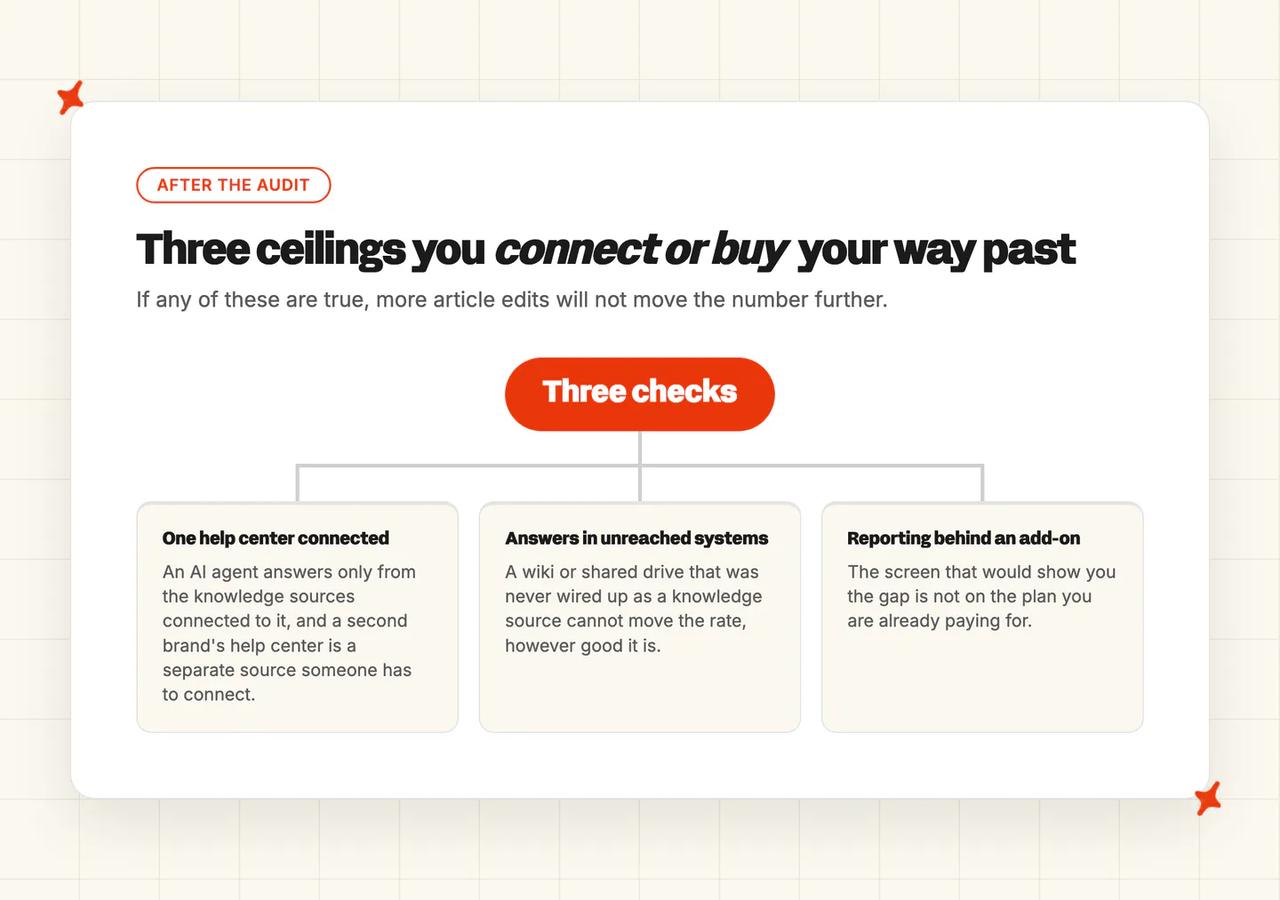
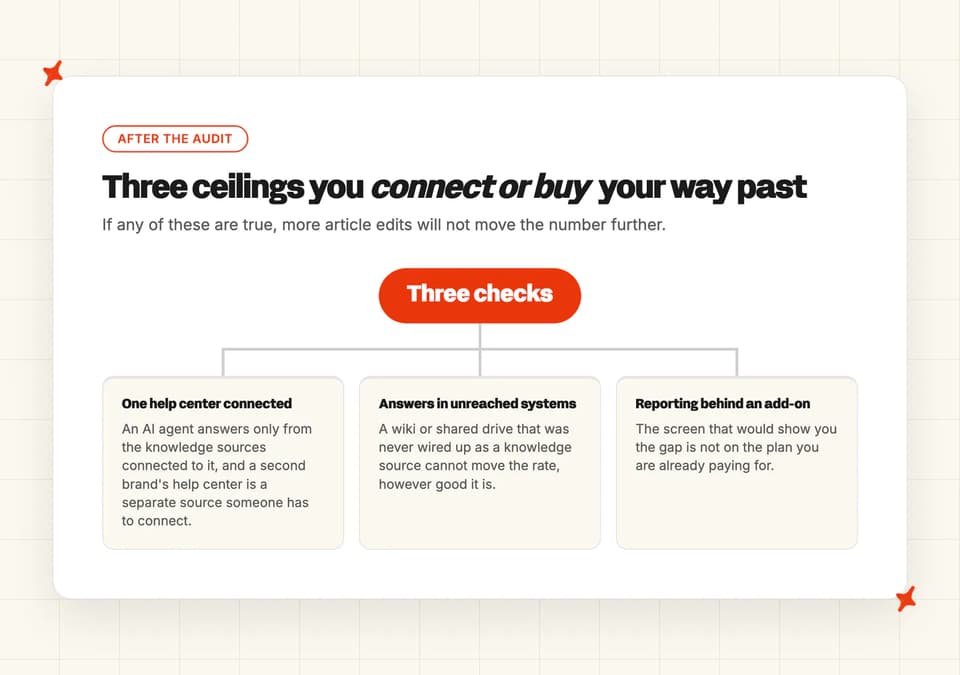
If the agent can only read one help center, or your answers sit in systems nobody has connected to it, that is a connection someone can make on the plan you already have. The reporting sign is the one that costs money: the screen you need is behind an add-on you are not buying. Editing more articles won't budge any of the three, so we keep a rundown of Zendesk AI alternatives for the point where you start weighing a switch, and our Zendesk ROI calculator puts a number on it from your own ticket volume.
I'm one of the founders of My AskAI, so read the next two paragraphs with that in mind. My AskAI works inside the Zendesk you already have, and it reads your help center articles including the ones behind login, which is the direct answer to the ceiling Step 2 found. It also connects to Notion, Confluence, SharePoint, Google Drive, Salesforce and Shopify, so answers that never made it into Guide still get used.
Self-learning drafts new articles by comparing the AI's reply to what your agent actually sent, so you get the Step 5 habit without the manual part, and Multibrand gives you a separate agent per brand. And where the answers were never written down at all, we train on your historic tickets. We read the last 5,000 by default, more if you ask, and turn them into article drafts, so a team with no help center still has something to answer from. Our Zendesk tickets integration page has the setup.
TravelJoy uses Zendesk Ticketing and Messaging, and was resolving 24% with Zendesk's AI agent before the switch. Its head of customer service put the number in one line.
"You're beating Zendesk's AI agent 76% to 24% on AI deflection. Huge." — Alan Pugh, Head of Customer Service, TravelJoy, in our TravelJoy case study
FAQs
Why is my Zendesk AI resolution rate lower than expected?
Usually one of three things. Zendesk counts a conversation as a "Verified resolution" when a model has read the transcript and confirmed the request was resolved, and as a "Contained resolution" when the conversation does not pass that check. That makes the headline figure stricter than a raw deflection count. Past that it is coverage: either the article does not exist, or it exists and the AI cannot see it because of a viewing permission. Our resolution rate benchmark study is the yardstick if you want to know where your number falls against other teams.
How do I find which help center articles my Zendesk AI is failing on?
This takes two reports (one per-article, one per-topic). The "Knowledge sources" report on the "Contact reasons tab" of the AI agent reporting dashboard scores individual articles on usage, escalated conversations, automated resolutions and BSAT, so you can see which content is losing conversations. The automation potential report then lists the topics your customers ask about that your help center cannot currently answer at all.
How do I check what content Zendesk AI is answering from?
Look at two things. First, which sources are connected to the agent, since it can only answer from what was wired up. Second, the viewing permissions on those articles. The AI answers as the person asking, so restricted content is excluded whenever the customer has not signed in (the Step 2 failure, and the most common one).
How long does it take for the resolution rate to move?
We give it a month before judging whether the edits worked. A published article reaches your AI agent within a few minutes. On email, the figure trails by up to 72 hours. Measure over a fixed window that starts after your edits went live, and watch BSAT alongside it for the first two weeks.
Can I roll this back if it makes things worse?
Yes, and each piece separately (none of it is permanent). An article can be unpublished or scheduled to unpublish, a viewing permission can be changed back the same way you set it, and you can take the AI agent off a channel entirely with "In the Settings tab, expand the Channels section and deselect the channel you want to disconnect", then publish. One caution from Zendesk before you do that last one: "Before disconnecting an AI agent, make sure your default messaging response is properly configured."
Does any of this cost anything on my current Zendesk plan?
How much comes with the plan you already have depends on your tier. What you pay for separately is the outcome: automated resolutions are the unit Zendesk bills on, and the escalation and contained tiers do not count against your allowance.
| What the audit uses | Plan it comes with |
|---|---|
| AI agent reporting dashboard (Steps 1 and 3) | Suite Team and Support Team, and above |
| Automation potential report (Steps 3 and 4) | Suite Team and Support Team, and above |
| Knowledge in the context panel (Step 5) | Suite Growth, or Support with Guide Professional or Enterprise |
| User segments on articles (Step 2) | Suite Growth |
Our Zendesk AI pricing explainer has the current numbers.