How to Build a Zendesk Knowledge Base Your AI Can Actually Use
Build a Zendesk knowledge base your AI agent can read: categories, visibility and labels, in a morning. An internal knowledge base needs Suite Growth.
Summarize with AI
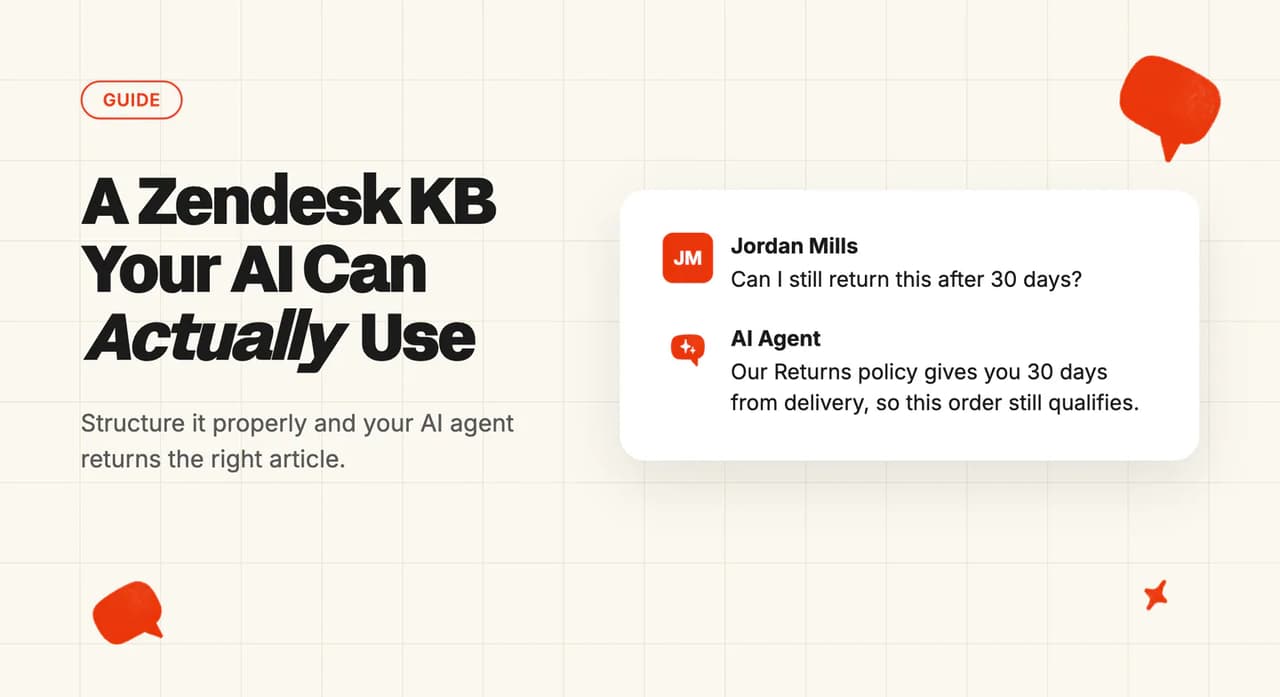
Most help centers grow one article at a time. Somebody writes a returns policy, somebody else writes a better one later, and both are still published. The same ten questions keep arriving as tickets anyway.
Then you switch on an AI agent and it answers two of them confidently, out of the wrong article. We connect to a lot of Zendesk help centers. The articles inside them are usually fine. The structure underneath sends the agent to the wrong one.
The Zendesk build itself is the category and section tree, who can see which article, the labels, and what your AI agent is allowed to read. Wording an individual article is a different job, covered in our guides on optimizing a knowledge base for AI agents and on AI help center optimization.
What do you need before you start?
The list is short, and permissions are the item to sort out first.
- Permissions: Support admins have Knowledge admin privileges by default, and you must be a Knowledge admin to add categories and sections. Being a Knowledge admin isn't enough on its own, because "You must be the account owner to enable the help center", and a Support administrator activates it. Find out who your account owner is today, well before the morning you want to publish.
- Plan tier: "Knowledge is included in Suite plans or can be purchased with any Zendesk Support plan", Zendesk says. Suite Team buys you a public help center with categories and sections, and a choice between an article anyone can read and one only signed-in customers can read. Going narrower than that (agents and admins only, or one named segment of customers) starts on Suite Growth, where labels start too.
- Data prep: the questions your customers ask most, ranked by volume. Nothing else.
- What you can skip: the theme, the full content audit and the style guide. Zendesk builds your help center on the default theme and lets you change it later, and while it is in setup mode "end users can't see it". Build the whole thing first and leave activation until Step 6, right before you connect it to your AI agent.
What does a Zendesk knowledge base cost?
Knowledge is bundled into your Suite plan, and which row of the table below you are on decides what you can build.
| Plan | Per agent, per month (billed yearly) | What you get for the knowledge base | What is still gated |
|---|---|---|---|
| Support Team | $19 | Knowledge as a paid add-on | Everything below, until Knowledge is added |
| Suite Team | $55 | A public help center, categories and sections | Agents-only and segment-restricted articles, internal articles, labels, multiple help centers |
| Suite Growth | $89 | Knowledge Professional, view permissions, internal articles, labels, five help centers | 300-brand scale, Knowledge Enterprise |
| Suite Professional | $115 | The same knowledge base you get on Growth | 300-brand scale, Knowledge Enterprise |
| Suite Enterprise + Copilot | $169 | Knowledge Enterprise, 300 help centers | None |
Suite Growth is the tier I'd aim at. It is where narrower view permissions (agents-and-admins, or a named customer segment), labels and multiple help centers first appear, so $89 is the cheapest Suite plan covering a build that uses restricted or internal articles. Zendesk includes Knowledge Professional on both Growth and Professional, so the $26 step up to Professional buys you nothing for the knowledge base itself.
Which Zendesk help center setup do you actually need?
The route you pick decides what your customers can see and what your AI agent is permitted to read, so give it five minutes before you create anything.
| Route | Best for | Setup time | Needs a developer? | Trade-off |
|---|---|---|---|---|
| One public help center | A single brand, everything answerable in public | One sitting | No | With one category, customers never see a category page, so section names carry the navigation |
| Public help center with restricted articles | Teams whose best answers involve account detail | Half a day | No | A signed-out customer never sees them, and neither does your AI unless it can read behind the login |
| A separate internal knowledge base for agents | Teams whose agents ask each other the same questions | Half a day | No | A second library to maintain, and none of it helps a customer self-serve |
| Multi-brand help centers | More than one brand or region | A day per brand | No | Each brand is a separate set of articles to keep current, and search does not span them until you turn that on |
Zendesk gives you two ways to restrict an article, and they lock out different audiences. Require sign-in gates the entire help center. Zendesk's wording: "AI-generated answers will be available only for end users who are signed in". Per-article view permissions are narrower.
I use these when most articles are public but a handful need a specific audience, and a restricted article reaches an AI answer only for users whose segment matches (so one signed-in customer gets the answer and the next one does not). When I want agents to use the knowledge base but not customers, an internal knowledge base uses the same setting in reverse: "Agents and admins" is one of the four viewing choices.
Multi-brand support is a plan decision first. Zendesk allows "Suite Growth or Professional: Five brands, Five help centers" and 300 of each on Enterprise.
A common belief is that one AI agent can only serve one brand. That reading came from Zendesk's retired legacy model, which is now listed as such on its documentation page. Under the current model, you can connect multiple knowledge sources to a single agent, including help centers belonging to other brands. Search does not follow automatically, and multiple help center search is the setting that turns it on.
My rule of thumb is that if you cannot name the customer who needs a restricted article, you do not need restricted articles yet. Start with one public help center instead. It must have at least one category, it is on every Suite plan including Suite Team, and nobody needs to be signed in to read it.
How to build a Zendesk knowledge base your AI can use, step by step
Step 1: Turn on Knowledge and pick the brand you are building for
Start in Zendesk. Zendesk's setup flow asks you to click the Zendesk Products icon, select Knowledge, then click Get started. Your help center opens in setup mode, visible to admins and agents and to nobody else. That is where I want it until Step 6, when your AI agent needs it live.
If you run more than one brand, pick which one before you create anything, because Zendesk builds a help center per brand. When you reach Step 6, open Knowledge admin and click "Settings", then click "Activate" under "Help center settings".
You are done when you can open Knowledge admin and see an empty help center under the right brand.
Step 2: Build your category and section tree around the questions you get
Build the tree from your ticket drivers. An org chart or a feature list gives you a structure only your team can navigate. My test is that a customer should find the right article without knowing how your team is organized.
Categories are the top-level containers, sections live inside them, and sections hold the articles. The path is "Help center or Knowledge admin > Add button > Section or Category", and you rearrange the whole thing from "Knowledge admin > Arrange content".
Three categories and eight sections is enough for most support teams. Here is that tree, built from real drivers.
- Orders and delivery
- Where is my order
- Change or cancel an order
- Delivery times and costs
- Returns and refunds
- Start a return
- Refund timings
- Faulty or wrong item
- Account and billing
- Sign-in problems
- Payment methods and invoices
Run your top ten ticket drivers past the tree before you move on. Every one should have an obvious home.
How do you get AI to draft the tree for you?
Sorting twenty ticket subjects into categories by hand is slow, so hand the first draft to whichever AI tool you already have open and argue with what comes back. Paste the prompt below and you have a first version of the tree on the screen to edit. It will guess at parts of your business, and I have yet to keep one of its names unchanged. Read every one back and ask whether a customer would say it that way.
Here are the ticket subjects my support team handles most often, ranked by volume.

[paste your top 20 ticket subjects]

Group them into 3 to 5 Zendesk categories, with 6 to 10 sections underneath. Follow these rules:
- Name every category and section the way a customer would say it, not the way my team is organized.
- Every subject on my list gets one obvious section, and only one.
- Flag any subject that does not fit anywhere, and say what it would need.
- Where you are guessing at what my business does, write "guess, please confirm" beside it.

Return an indented list, with the ticket subjects that map to each section underneath it.
Step 3: Get your ranked ticket drivers from Explore and write one article per question
Still in Zendesk. The ranked list you need is already in your tickets: the ticket field you group by is the reason for contact, and Explore reports on those fields. Sort by volume, take the top ten, and write one article per driver into the section you built for it.
Ten articles covering your ten biggest drivers beat forty covering everything you could think of. Our guide on AI help center structure covers how to word each one.
Writing ten articles from a blank page is the slow part. If you have no help center at all yet, our Train on Historic Tickets feature drafts them for you. The backfill is your last 5,000 historic tickets by default, and more on request. Your job becomes editing and publishing what it produces.
Step 3 is finished when every high-volume reason for contact has a published article mapped to it.
Step 4: Decide who can see each article, and what that means for your AI
This step decides what your AI is allowed to read. My default is to leave an article visible to everyone, and to restrict only the ones that would be a problem in public. Open the article editor, expand the Placement panel under Article settings, and set the viewing permission for that article. The choices are everyone, "Signed-in users", "Agents and admins", or "Up to 10 custom user segments".
Permissions are set per article, so a section looks restricted only when every article inside it is. A customer who is not signed in can be answered from public articles only, so a policy behind a login never reaches the person asking in a public chat. Keep a list of the restricted ones as you go, because Step 6 asks you for it. My list is a note with the article title and who it is for.
Step 4 is done when you can name which articles your AI agent cannot reach, because you chose to restrict them rather than because you forgot to check.
Step 5: Label your articles so the right one comes back
Labels describe what an article is about, wherever it is in the tree. To add one, open the article editor, expand the Placement panel, and type directly into the labels field. Zendesk creates the label as you type and lets you confirm it.
There is no bulk fix later, so I keep the scheme small enough to explain in a sentence. Zendesk caps you at 50 labels per article and states that "There is no global management for article labels", so every rename is made article by article. Add "use_for_autoreply" to anything you want an AI answer drawn from, because the label tells Zendesk's AI agents to consider that article for auto-replies.
If a new agent asks what the labels are for and the answer takes more than a sentence, the scheme has grown too wide.
Step 6: Connect the help center to your AI agent and check what it picked up
Now you leave Zendesk for the AI tool's own console. Whichever agent you run, ours included, the help center connects to it as a knowledge source. Ask which articles it can see: public only, or behind the login too. That single answer decides how much of the work in Step 4 ever reaches a customer.
In Zendesk's own agents, I do this from the Content panel: open Knowledge sources, edit the list, and add the help center I built. Your help center has to be activated first.
A connected help center is searched live, and an external source is only as current as its last sync. Zendesk notes that syncing "usually happens every 24 hours". Fix an article in the help center and the agent has it immediately. On a price change or a policy change, I want the live help center underneath the agent.
Check that the connected sources list shows the help center you expect, and that you can see which article a given answer came from.
Step 7: Put a name and a review rhythm against it
Somebody owns this, or it rots. I mean one named person with the calendar slot to match. Zendesk's article verification reminders email the article owner when content goes unverified, and those reminders need an Enterprise plan. Below that, the review rhythm is whatever you put in that person's calendar.
A monthly half hour is enough. Pull the drivers again (the same Explore report from Step 3), check the top five still return the article you expect, and retire what has gone stale.
Building the knowledge base is this post's job. Getting the AI agent on top of it to resolve more of those tickets is covered separately: our guide on how to improve your Zendesk AI resolution rate picks up where this leaves off.
You have finished when there is a named owner and a repeating slot in their calendar.
How to test it before you let it near customers
Run all four before a customer sees any of this.
- The known-good question. Ask something your top-driver article answers. Pass: the right article comes back, and you can see it was the source.
- The hidden-article check. Ask something only a restricted or agents-only article answers, signed out. Run it for real: Zendesk states that "You cannot test AI agent answers that rely on restricted content in the test widget". An admin can "select Assume identity" to see the help center as a specific customer (anything done while assuming that identity is recorded as theirs, so use a test account). Pass: nothing restricted leaks.
- The gap check. Ask something you deliberately never wrote an article for. Pass: it hands over to a human instead of improvising.
- The customer-side search check. Search the help center signed out, the way a customer would. Pass: the search result takes you to the article itself.
Go live when your top ticket drivers each return the right article and nothing agents-only is reachable from outside.
What breaks, and how do you know?
When something breaks, I start from the symptom and work back to the setting behind it.
| Symptom | What is actually happening | Fix |
|---|---|---|
| The AI answers confidently from an article you thought was gone | It is still published. Visibility is set per article, so a section only looks restricted when every article in it is | Open the article, set the visibility you meant, or unpublish it |
| A signed-out customer gets nothing useful, though the answer exists | A signed-out customer can be answered from public articles only | Publish a public version of the answer, or move the customer into a signed-in flow |
| It behaved in the preview and misbehaved in production | Restricted content cannot be tested in the test widget | Test as a real signed-in customer before go-live |
| You fixed an article and the agent kept giving the old answer | The agent is reading an external source, which is only as current as its last sync | Connect the help center itself as the source, or force a resync |
| The label scheme has drifted and nobody can fix it in bulk | There is no global label management in Zendesk | Agree a small scheme, then correct article by article or through the API |
| Customers on one brand cannot find an article on another | Search does not span help centers until multiple help center search is configured | Turn on multiple help center search, or duplicate the article per brand |
What should you do next?
You now have a tree built from real ticket drivers, every article assigned to a viewing audience, and a label scheme you can explain in a sentence. The agent you connect on top decides how much of it a customer ever sees.
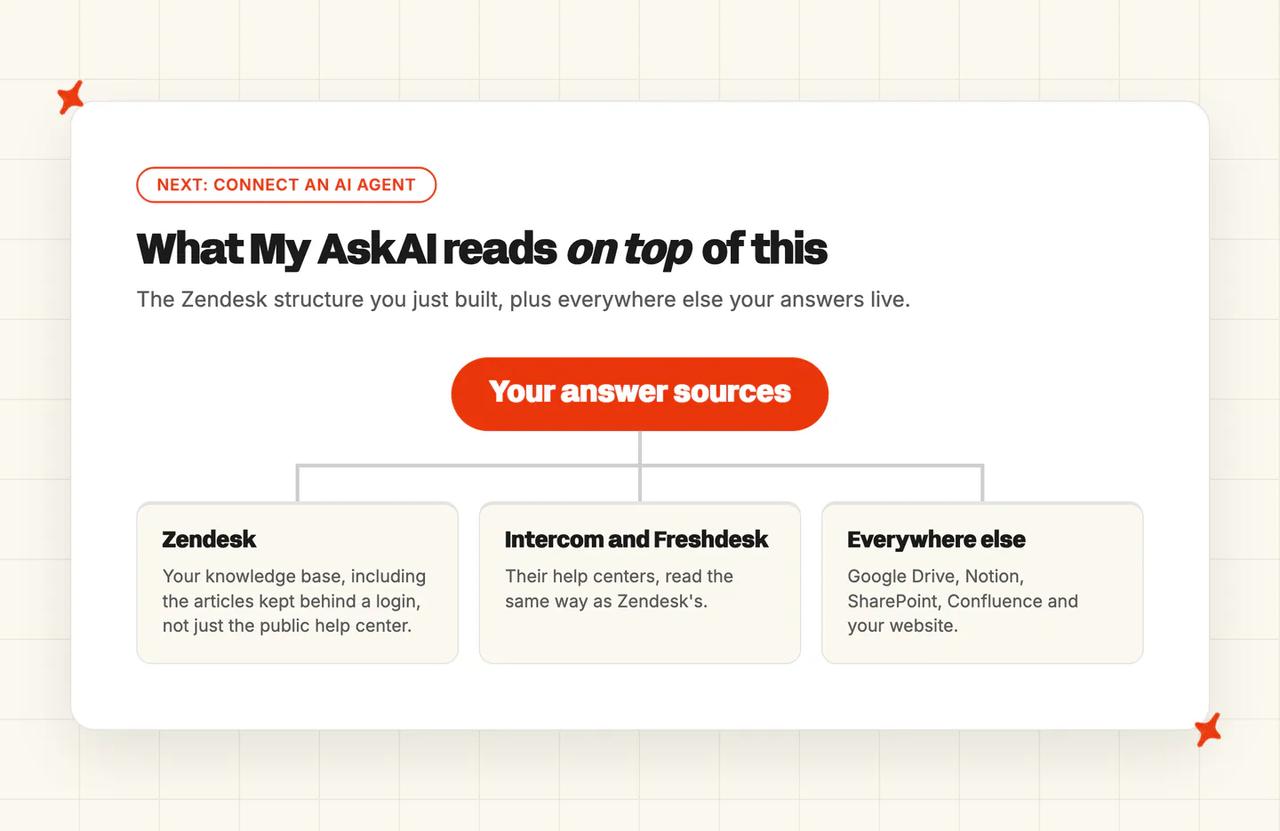
My AskAI reads your Zendesk knowledge base and help center, including the articles behind a login, which answers the question Step 4 leaves open. We read Intercom and Freshdesk help centers the same way, alongside Google Drive, Notion, SharePoint, Confluence and your website. TravelJoy moved to us on the Zendesk help center they had already built.
If that is your next job, our Knowledge feature shows everything your AI knows in one view.
FAQs
Does Zendesk have a knowledge base?
Yes. It is the Knowledge product inside a Zendesk help center. Zendesk's own documentation says "Knowledge is included in Suite plans or can be purchased with any Zendesk Support plan". What you get varies by tier: a public help center on Suite Team, and access controls, labels and agent-only content on Growth and above.
Do I need admin access to build a Zendesk knowledge base?
Yes, and it takes two roles that are rarely the same person. Knowledge admin privileges come with the Zendesk Support admin role and cover categories, sections and articles, but enabling the help center is reserved to the account owner. Find out who that is early, because in my experience the account owner is a founder or a finance lead who is not expecting a help center request.
Is Zendesk Guide the same as the knowledge base?
Effectively yes, under an older name. Zendesk's documentation now writes "Knowledge (previously Guide)", and the current plans are Knowledge Professional and Knowledge Enterprise (the old Guide plans are listed as legacy). If you are searching Zendesk's help center for build instructions, the correct search term is Knowledge.
How much does a Zendesk knowledge base cost?
It depends on your Suite tier and on whether you need view permissions, internal articles, labels or multiple help centers. A public help center is covered on Suite Team, at $55 per agent per month billed yearly. Anything restricted or labeled needs Suite Growth, at $89 on the same annual billing (Suite Professional adds nothing further to the knowledge base).
Can I roll this back if the new structure does not work?
Mostly, yes, and I have rolled back structures that went wrong. Sections and articles move between containers from Arrange content, and deleted articles can be restored. Category and section drafts let you stage a change before anyone sees it. Labels are the exception: every rename is a manual edit per article with no shortcut. Here is how the reversibility breaks down.
| What you changed | Can you undo it? |
|---|---|
| Moved a section or an article | Yes, from Arrange content |
| Deleted an article | Yes, restore it |
| Published a category or section | Yes, put it back to draft |
| Renamed a label | Only article by article |
Can I export my Zendesk knowledge base?
Zendesk's own documentation says that "Zendesk does not have a prebuilt tool to export articles or automatically transfer them between help centers. However, you can move your content using manual copy-pasting, the Help Center API, or third-party partner services." The API route is a developer job. Our guide on moving a knowledge base to a new AI agent covers the order to do it in.