How to Improve Your Intercom Fin Resolution Rate: An Afternoon Audit
Your Intercom Fin resolution rate is under what you were sold. Audit the content, Guidance, escalation rules and Procedures. One afternoon, a month to move.
Summarize with AI
The rate on your Fin report is lower than the one you heard on the sales call. The bill still arrives per outcome. You inherited a help center, somebody added Guidance last year, and the tickets waiting for a reply have not got any shorter. By the end of an afternoon you can name the surface costing you the most conversations, and you will have a Procedure drafted for each of the three intents it is failing on.
Everything below happens inside the Intercom workspace you already pay for. If you have already decided against Fin, our walkthrough on adding AI to Intercom without Fin is the better read for you. What counts as a good rate across the industry is a separate question, and our study of AI resolution rate benchmarks answers it.
An agent login can read most of these screens without being able to save changes to them, so bring somebody who can. Intercom splits the keys up: Guidance needs "Can manage Automation settings and inbound Workflows", Procedures needs "can manage workspace data", and setting Fin live needs billing permissions. A few screens are also behind a paid Intercom add-on, and that one only changes your speed. Settle both before you block out the afternoon.
What do you need before you start?
- Permissions: the "Can view Fin and Automation settings" teammate permission, which an admin grants from Settings > Workspace > Teammates. Analyze, Train, Test, Deploy and Fin settings all live in one left rail, and this audit touches four of them.
- Plan tier: Recommendations (the Optimize dashboard), CX Score, Topics Explorer, Trends and Fin Operator (which can tell you why Fin gave a wrong answer) sit inside Intercom's Pro add-on, which is priced on conversation volume. Without it you can still do every check below, though check three runs off the content performance table instead of the Pro screens.
- Data prep: Fin has to be live and answering. Intercom is blunt about it, and says "You'll only see the Performance dashboard once you've set Fin live and it's involved in conversations."
- The number itself: dig out the resolution rate your account team quoted, and the window it was quoted over. That is the only benchmark I want you measuring against.
- What you can skip: rewriting your help center. Do not start there. Two of the checks below tell you exactly which articles to touch, and the rest of the library can wait.
Here is the whole afternoon, check by check:
| Step | Where it happens | You are done when |
|---|---|---|
| 1. Read the real number | "Fin AI Agent > Analyze > Performance" | One rate, one window, and whether it counts Fin Constrained |
| 2. Check what Fin can see | "Fin AI Agent > Train > Content" | A short list of content to fix |
| 3. Find the failing questions | The Reports section, Fin AI Agent template | Three intents, ranked by what they cost you |
| 4. Read your escalation rules | "Fin AI Agent > Train > Escalation" | Each escalation guidance entry has a topic |
| 5. Prune your Guidance | "Fin AI Agent > Train > Guidance" | Entries that rarely resolve are off |
| 6. Build Procedures | "Fin AI Agent > Train > Procedures" | A Procedure in Draft for each intent |
| 7. Compare against your contract | Your contract, beside the same window | The gap stated in one line |
How to lift your Fin resolution rate, step by step
Step 1: Read the real number, and check what it counts
Start at "Fin AI Agent > Analyze > Performance". Intercom defines the headline metric as the "Percentage of conversations where Fin provided an answer and resolved (out of conversations where Fin was involved)".
The arithmetic underneath it is Automation Rate = Involvement Rate × Resolution Rate. A high resolution rate on a small involvement rate is still a small result (worth remembering before you celebrate either number alone).
Then check whether your number moved on its own. Intercom changed how the denominator is built, and says that your resolution rate will increase "because Fin Constrained conversations are no longer counted in the denominator". A Fin Constrained conversation is one where Fin was active but never got the chance to resolve.
That change did not reach everything. Intercom's note is that "There are no changes to existing custom reports." So a custom report and a standard dashboard can show two different rates for the same week, and neither is broken. I stick to one screen and one reporting window from here.
Fin also counts an assumed resolution when "a customer disengages from the conversation for 24 hours after Fin's last answer". Some of those assumed resolutions are customers who gave up.
Split confirmed from assumed before you celebrate anything. Deflection is a separate number and it is still available in the Reports section, which our explainer on deflection rate covers properly. Leave this check with one rate written down, the window it covers, and a note of whether that screen counts Fin Constrained conversations.
Step 2: Check what Fin can actually see
Most of a low rate traces back to the content Fin reads. When someone tells me their agent is answering badly, the content behind the answer is almost always out of date or contradicted by something else in the help center. So open "Fin AI Agent > Train > Content" and check three things.
First, the per-item state. Every content item has a separate toggle for Fin Agent, and an article can be published, live in your help center, and still switched off for the agent.
Second, the audience layers (there are two, one on the content and one on the conversation). You define audiences at "Settings > AI & Automation > Audiences", then apply them at "Fin AI Agent > Train > Content" through More actions and Change audience. Intercom warns that "Audience rule changes only apply to new conversations created after the rule update."
Third, the sync cadence. Fin re-reads a synced site once a week, and content synced from Zendesk arrives view-only. That explains the complaint that you fixed the article and Fin still gives the old answer.
One commenter answering a thread full of people in the same position put it like this.
"ruthlessly limiting what it's allowed to read for each topic (even if it feels dumb to hide docs)" — u/wagwanbruv, r/CustomerSuccess
For the article patterns that retrieve well, our guide to building a knowledge base an AI agent can use is the right next read. Finish this check with a short list of items that were invisible, stale or contradictory, and fix those before you touch anything else.
Step 3: Find the questions Fin is failing on
The average hides the intents Fin keeps failing on, so I build the failure report first, following Intercom's instruction to "click on the + icon at the top of your Reports section, then select the Fin AI Agent template to get started quickly."
Then read the content performance table the way Intercom tells you to. "If the number in the Fin AI Agent resolved conversations column is significantly lower than the involved conversations column for a piece of content, it means the information Fin is using is not providing satisfactory answers to customers." That sentence tells you which articles to fix. The table sits in the Reports section, on the Fin AI Agent template you built a moment ago.
Intercom points at the Optimize dashboard as well, telling you to "head to the Optimize dashboard to see what needs fixing, why it matters, and how to improve it." That dashboard is where Recommendations lives, so it needs the Pro add-on too. Recommendations ranks its list of fixes by volume and impact, so the highest-value one sits at the top. Without the add-on, I use the content performance table from the last check, which gets me to the same three articles, just a little slower.
If you have the Pro add-on, go to "Fin AI Agent > Analyze > Topics Explorer". Use the metric dropdown to select Fin automation rate to see which topics have high or low Automation Rates, broken down by topic, channel, or segment. I look for the high-volume topics that are hard to automate. Those are the three intents to fix.
If you are on a standard plan, name your three intents directly from the content performance table you already built. I sort by the gap between the involved conversations column and the resolved conversations column, largest gap first. Read the top three and write down the customer question each one is failing to answer. Those three questions are your three intents.
You are done with this check when you have three named intents, ranked by how many conversations they cost you. Our explainer on why chatbots give wrong answers is worth a read alongside the list.
Step 4: Read your escalation and handover rules
Go to "Fin AI Agent > Train > Escalation" and read what is switched on. Intercom draws the line clearly, writing that "Escalation Rules and Guidance decide when escalation happens. Workflows decide what happens next." It's easy to edit one of the three and assume you've changed all of them. I always read all three before touching any.
Intercom is also direct about the cost of getting this wrong, warning that "broad or generic guidance can cause a sharp increase in escalations and a corresponding drop in Fin resolution rate." Read every escalation guidance entry and check that it names a topic. The vague ones fire constantly, so start there (it's the fastest fix in this step).
The Threshold setting "controls how often Fin pauses", with Low meaning Fin only asks when it is least confident and High meaning it asks more often. Moderate is the default, and Intercom says "This is different from escalation" because the conversation stays with Fin. Threshold is part of Ask for input, the Intercom feature also called Human in the Loop, which is in open beta, runs over email only, and is not available on standalone Fin plans, so the control may not be on your screen at all.
Read every rule before you change one. My bar is simple: if a customer asks for a person, Fin can't answer, they're clearly frustrated, or the topic just needs a human, they get a person.
Dialing back escalations to push the rate up just leaves more customers stuck talking to Fin when they needed a person. This check is done when every escalation guidance entry names a topic, and you know which of the three controls your workspace has edited.
Step 5: Prune your Guidance before you add more
Guidance is the fastest lever in Fin. It is also the first place I look when a rate drops and nobody has touched the content. Open "Fin AI Agent > Train > Guidance". A maximum of 100 pieces can be live in a workspace at one time, each up to 2,500 characters, so count what is already there before you add to it.
Prune first because Intercom measures each piece for you. "Once your guidance is enabled, you can track its impact on Fin's conversations. Go to Fin AI Agent > Train > Guidance to see how often a piece of guidance was used and what percentage of those conversations were resolved or routed to your team."
Sort by that column and switch off anything used often and resolved rarely (low usage on its own is not the problem, since a piece nobody triggers costs you nothing). Clear the dead entries before you write anything new, because the 100-piece ceiling is easier to live inside once they are gone.
After writing a piece, click the lightbulb to have it reviewed by Intercom's writing assistant, which flags ambiguity and contradictions before they reach a customer. And before you save or enable anything, the Preview panel lets you ask Fin questions and watch the new guidance apply. If you are hunting for the old Handover and escalation category, it moved out to the Escalation tab you read in the last check.
Close this check with a Guidance list you would defend entry by entry, and the entries that resolve rarely switched off. If I cannot say what an entry is for, it goes.
Step 6: Turn the repeat failures into Procedures
The intents that fail the same way every time need a Procedure. Go to "Fin AI Agent > Train > Procedures", click "+ New procedure" and pick a creation method. Letting Intercom's AI draft it gives you a 5,000 character description field to work from, which is plenty for a refund flow or a plan change.
Build it in Draft (nothing in Draft can reach a customer). Intercom spells out two rules that catch people out.
Workspace Guidance does not apply inside a Procedure until you select it there. Once selected it adds to the Procedure and never overrides it. And a handoff runs one way (when Fin passes a customer to a Workflow the Procedure ends), so keep the branches you care about inside the Procedure.
Fin's own built-in escalation behavior is a different thing again, and it never switches off inside a Procedure. A customer who asks for a human, or who is clearly upset, still gets one, whatever your Procedure says:
"Fin's built-in escalation always applies. Fin's default escalation behavior — triggered when a customer asks for a human, expresses strong frustration or anger, or is stuck in a repetitive loop — always applies inside a procedure regardless of your guidance settings." — Intercom's Procedures documentation
A Procedure you configure to end in a handoff now counts as a billable outcome, even though a human finishes the job. Fin's default escalations, workspace-level Escalation Rules and Guidance, and a Procedure that fails to complete are not billed. Automation Rate counts only the conversations Fin fully resolves, so a Procedure's handoffs never appear in it. Our post on Intercom Fin pricing sets out what moves that line.

Each of your three failing intents should now have a Procedure in Draft, tested and not yet live.
Step 7: Compare against the number in your contract
You now have a before figure, a fixed window and a list of changes. Compare the same window to itself, and compare it to the rate on your contract.
Three public numbers exist and they do not agree. Intercom's own blog says "Our average resolution rate across customers has increased every month and now stands at 76%".
The Fin Guarantee attaches money to a much lower figure, promising "If you sign up for our Fin Guarantee Success Program and do not achieve at least a resolution rate of 65%, we will pay you $1M". It is open to customers running over 250,000 monthly conversations in North America and Europe, on Intercom Helpdesk or Zendesk, so outside that group the 65% floor has no money behind it. An older answer on Intercom's community forum is more sober, and says a good resolution rate "starts at around 30-50%".
I read the 65% as a contractual floor for very large accounts. The number you owe your boss is the one on your contract, because the public one moves.
Two things also move your rate without anything improving. Assumed resolutions inflate it, and Intercom deducts the ones that come back. "If a conversation is considered resolved (confirmed or assumed), but the customer later returns to the same conversation seeking further assistance (even across billing periods) that resolution will be deducted and not charged."
Fin bills per outcome, so your bill rises with your rate. For where your rate sits against the wider field, our AI resolution rate benchmarks study is the yardstick. Our post on AI customer service KPIs covers the other numbers to watch beside it.
You should now be able to state your rate, its window, and the gap to your contract number in one line.
How to test it before you let it near customers
- Batch test the three fixed intents. Go to "Fin AI Agent > Test" and run the wording your customers type, straight out of the transcripts (their phrasing, typos included). It passes when each one returns the corrected answer, from the source you expect.
- Test as the audience the fix is scoped to. Intercom supports this directly, and says "You can use Batch Testing to check Fin's answers for a specific audience." It passes when the answer is the same for that audience as it was for Everyone.
- Run Simulations on any Procedure you built. "The Simulations tab allows you to automatically test different logic paths within your instructions." It passes when every branch you wrote ends where you intended, including the failure branch.
- Preview it in the Messenger. Go to "Fin AI Agent > Deploy > Chat" and use the preview. It passes when the reply reads like something you would send. The preview does not fire a CSAT survey, so judge the words you see.
Do not go live until all three intents pass in Simulation and in a teammate test, and the escalation reason breakdown shows no new cause appearing. Only then click "Set live". Audience rule changes apply to new conversations only, so your measurement window starts the moment you set it live, and I date every before-and-after comparison from that click.
What breaks, and how do you know?
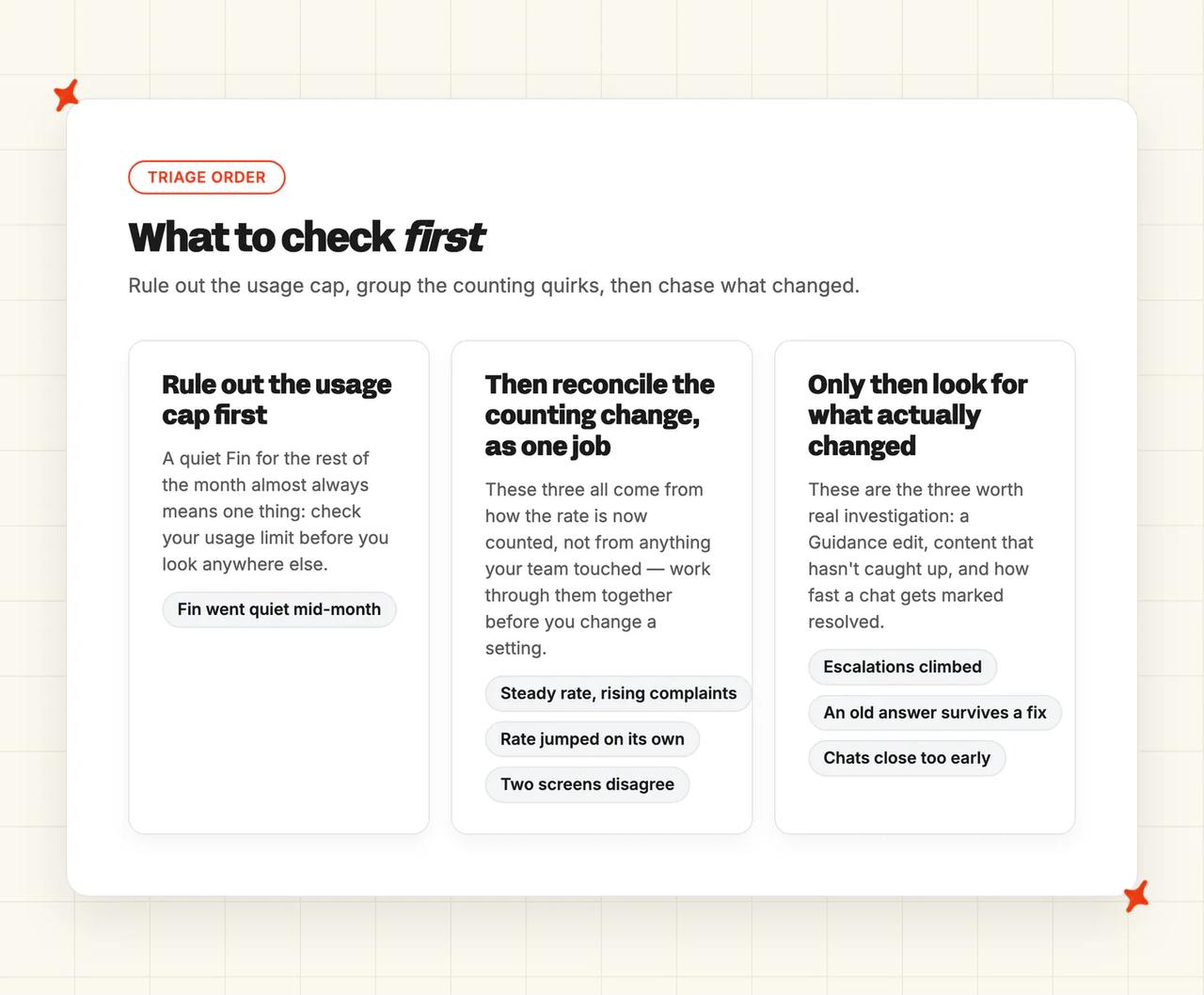
Read the table symptom-first, and read it before you change a setting. Four of the seven rows are measurement faults, where Fin answers exactly as it did last month and only the counting changed, so editing a setting in response costs you a week and moves nothing. I check "Settings > Subscription > Usage" first every time, because a hard limit turns Fin off for the rest of the billing period and no other row explains Fin going quiet mid-month. Treat the first three rows as one problem: the dashboard and the custom report have to agree on a single number before the last three symptoms are worth chasing.
| Symptom | What's actually happening | Fix |
|---|---|---|
| The rate is at target, complaint volume is unchanged | Assumed resolutions. Twenty-four hours of silence counts as resolved | Split confirmed from assumed, and read conversation ratings beside the rate |
| The rate jumped and nobody changed anything | Intercom rebuilt the denominator. Fin Constrained conversations no longer sit in it | Start a fresh window under the new definition; Intercom says its transition features, including the legacy-metric option, have been removed |
| Two screens show two different rates | Standard dashboards use the new definition and custom reports still use the old one | Rebuild the custom report, or pick one screen and read only that |
| Fin stopped answering mid-month | A hard limit turned Fin off for the billing period, and new conversations "jump immediately to your configured handover steps" | Check your usage alerts and limits before you look at anything else |
| Escalations climbed after a Guidance edit | "The more escalation guidance you add, the more often Fin escalates" | Narrow each entry to a named topic and audience, and delete the vague ones |
| You fixed the article and Fin gives the old answer | Synced sites re-read weekly, and audience changes are not retroactive | Wait for the sync, then check the audience rules and the Brand both match |
| Conversations close before the customer replies | The chat inactivity timer "is set to 4 minutes over chat channels and isn't configurable" | Expect it, and treat the assumed resolutions it creates with suspicion |
What to do next
If the audit turned up invisible articles, mismatched audiences and over-broad escalation guidance, you have a month of work and a number that should move. Do them in the order I gave them: content first, escalation rules second, Guidance third, Procedures last. Our 30, 60 and 90 day plan for AI customer service lays out the same sequence for a deployment that is starting from scratch.
When the same three intents keep failing after all of that, no setting inside Fin will reach them. You keep Intercom either way (migrating off Fin leaves the inbox, the macros and the conversation history where they are). Our roundup of Intercom Fin alternatives is the place to start pricing one.
You spent the afternoon digging through escalation rules and content tables to find out where an answer came from. My AskAI gives you that answer on any ticket, without the dig.
Ask Echo why the agent gave any answer and which knowledge source it used, or open the conversation in Inspect and Logs and read the sources for yourself. Run the agent in internal-note mode first, so it drafts beside Fin without replying to a customer until you are ready. Teams with no written documentation start from historic tickets instead, which is how we get an agent live for a support team with a thin help center.

We charge per ticket rather than per resolution, at $0.12 a credit on Pro and $0.10 on Scale, so your bill does not climb as the agent gets better. The trial runs 30 days with every feature unlocked and no card. If you want to see it running beside Fin, our Intercom integration page is the place to start.
FAQs
Why is my Intercom Fin resolution rate lower than Intercom quoted?
Usually because two things are true at once. The public figure moves between Intercom's pages: its blog claims 76%, the Fin Guarantee attaches money to a 65% floor for accounts over 250,000 monthly conversations, and its community forum says a good rate starts around 30 to 50%. Your contract number is the only one you are measured against. Assumed resolutions also change what the number means, so a workspace with lots of silent drop-offs counts give-ups among its resolutions.
How do I check what content Fin is answering from?
Open "Fin AI Agent > Train > Content" and check the per-item Fin Agent state first, because a published help center article can still be switched off for the agent, an invisible fault I hit more often than stale content. Then check the audience rules and the Brand on the content, since Intercom filters on both and excludes an article silently when the brand IDs do not match. For the article-by-article read, build a report from the Fin AI Agent template and compare the resolved and involved columns. A large gap on a single article means the information behind it is not answering the question.
Can I roll back a Guidance or Procedure change if it makes things worse?
Yes, at three levels (Guidance, Procedure and deployment). Guidance can be previewed before you save it and paused after, so the fastest undo is to disable the entry that caused the trouble. A Procedure stays in Draft until you click "Set live", so nothing reaches a customer until you say so. The full stop, if you need one, is to "simply remove Fin from any live Workflows or pause Fin in the Simple deploy section where Fin was set live".
Does improving Fin's resolution rate cost anything extra?
It can, in two ways. Fin bills per outcome and a Procedure handoff now counts as one, so raising the rate raises the bill even when a human finishes the job. The diagnostic screens that make the improvement quickest, Recommendations, CX Score, Topics Explorer and Trends, sit in the Pro add-on, which is "priced on conversation volume (outcomes)": $99 a month for the first 1,000 conversations, then $0.12 each to 5,000 and $0.10 to 50,000, counting teammate-handled conversations as well as Fin's. Our post on Intercom Fin pricing sets out what the bill actually depends on.
How long before Fin's resolution rate actually moves?
The checks themselves are one afternoon's work. Give the number about a month to move. Content and audience changes apply to new conversations only, and synced sites re-read weekly, so you need a full window either side of the change (a month before, a month after) before a comparison means anything. Intercom's blog says "Our average resolution rate across customers has increased every month", but that is an average across its customers. Yours will move at whatever pace your content allows.