How to make micro explainer videos for your product with Claude AI
Make 30-60 second feature-launch videos with Claude AI: no editing software, no design tools. Here's the step-by-step (with a free starter kit).
Summarize with AI
You ship features. Your customers don't see most of them.
The reason isn't usually the feature itself; it's that nobody has the time, budget, or video chops to make a 30-second explainer for every single thing you launch.
So the launches go out as a screenshot in a changelog, a paragraph on the blog, maybe a tweet (guilty as charged), and the activation curve barely moves.
This post is about closing that gap with Claude and an open-source starter kit we (the My AskAI team) built and use ourselves. By the end you'll have 5 example videos rendering on your machine in your brand, and a conversational loop to write, build, and refine new ones in minutes.
Let's go.
Why are short product videos suddenly worth making?
Before we get to the how, let's be honest about why this is a thing you'd spend an hour on.
Two places a short feature video earns its keep, and the numbers behind each are worth knowing because they make the case for doing this on every meaningful feature, not just the headline launches.
| Where the video sits | What it lifts | Headline number |
|---|---|---|
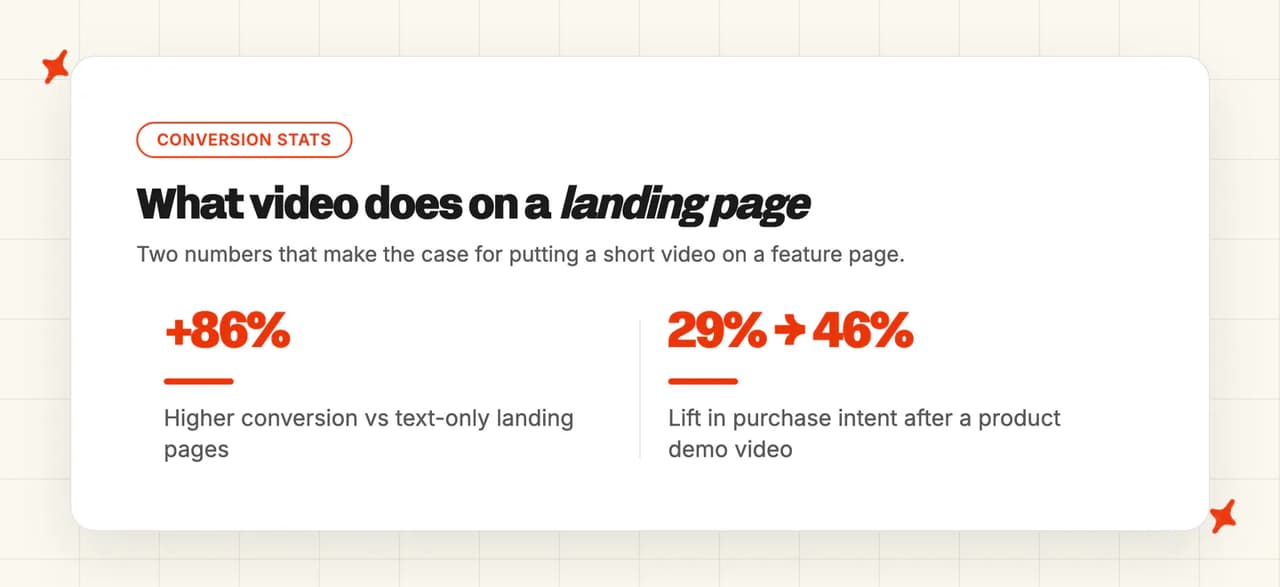
| Landing page or in-product | Conversion rate | +86% vs text-only pages |
| Landing page or in-product | Purchase intent | From ~29% to ~46% |
| Embedded in help docs | Ticket volume | −25% to −66% (62% of teams report a drop) |
| Embedded in help docs | Time on page | ~40% longer than text-only |
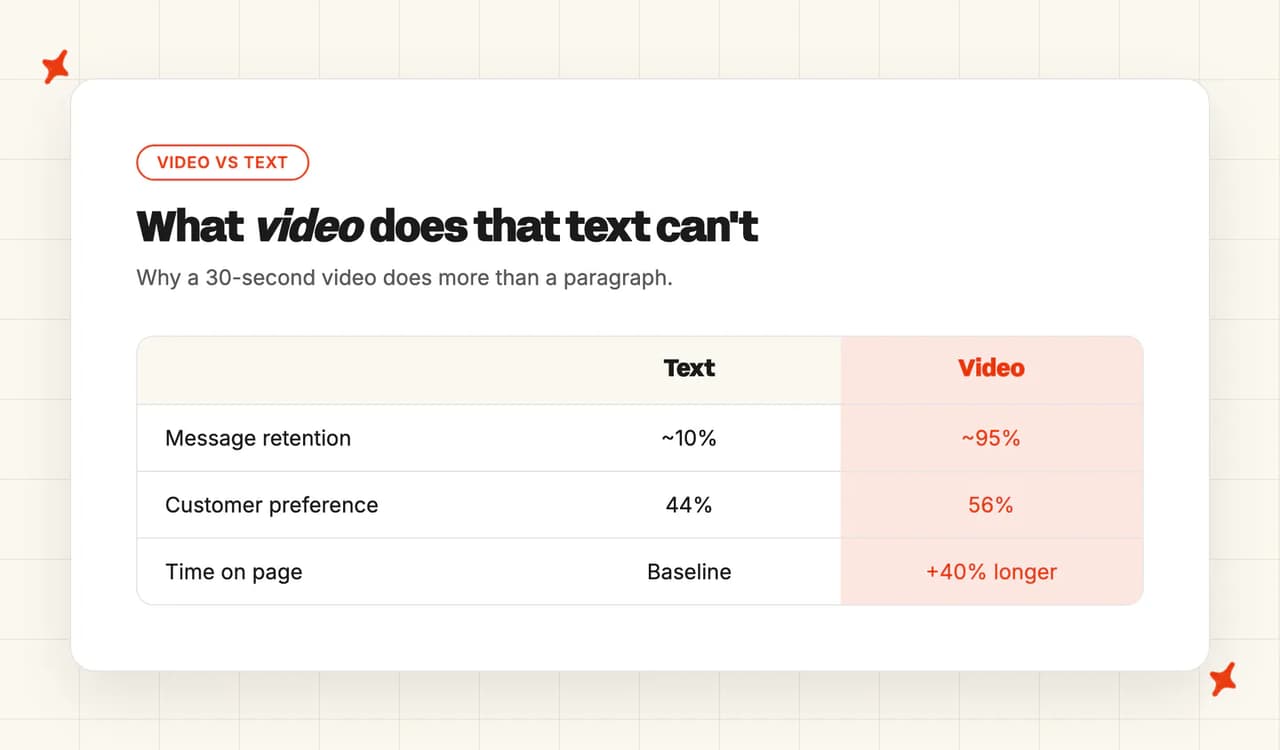
| Any context | Message retention | ~95% (video) vs ~10% (text) |
1. On your landing page or inside your product: to explain a feature or convince someone to try it.
People retain about 95% of a message when they watch it in video versus ~10% when they read it in text. A 30-second video genuinely does more work than a paragraph ever will.
96% of people have watched an explainer video to learn about a product, and 88% say they're more likely to buy after watching one. (Fun fact, we've found the same pattern on our own product pages: a 40-second feature video at the top usually out-converts the same copy in text.)
Landing pages with embedded video convert at 86% higher rates than text-only equivalents. Product demo videos lift purchase intent from roughly 29% to 46%.
And 56% of customers prefer video over reading when they're trying to understand something new. Either way, the message is the same: video does the heavy lifting that text can't.
2. Embedded inside your help docs: to reduce support tickets.
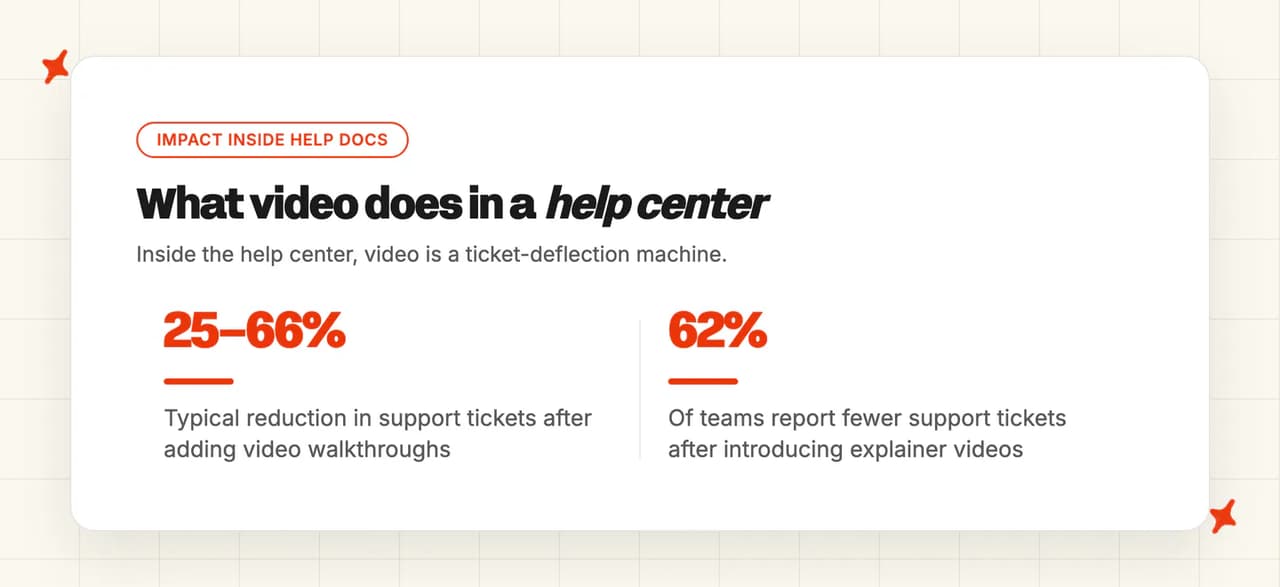
Companies that add video walkthroughs to their help centers typically see ticket reductions of 25-66%, with 62% of teams reporting fewer support tickets after introducing explainer videos.
Senja.io halved support tickets from the same user base after embedding in-app video tutorials. Atlassian's video-backed Confluence knowledge base cut ticket volume by 31%. (We've watched the same effect inside our own help center, although ours are still text-heavy and on the to-do list.)
Pages with video keep users engaged for ~40% longer than text-only pages, meaning users actually absorb the answer instead of bouncing to email support. (For the questions video doesn't deflect, that's what our day job, My AskAI, handles inside Zendesk, Intercom, Freshdesk, Gorgias, and HubSpot.)
The catch has always been cost and time.
A single 30-second explainer used to mean a brief, an agency, a week of back-and-forth, and four figures. If you ship features regularly, the math never worked for the long tail.
This kit collapses that to a conversation with Claude. The calculus changes: every meaningful feature can have its own video.
Stats sourced from Wyzowl, Wistia, HubSpot, Synthesia, and UserGuiding.
What's in the feature-launch video starter kit?
The kit is three things bundled together.
- Five working example videos you can preview, study, or fork. These ship in the My AskAI brand (the team that built the kit) so you have something concrete to point at while you're learning. When you set up the kit, Claude will offer to swap in your colors, fonts, and logo, and the examples re-render in your brand.
- A 3-skill assistant inside Claude Code. One skill handles branding (colors / fonts / logo), one handles scriptwriting (turning a feature description into a scene-by-scene script), and one handles building (turning that script into the actual video).
- The full Remotion framework underneath. Remotion is an open-source library that lets you build videos with React components. It's what makes "ask Claude to add a new scene" actually work, because every scene is just code Claude can read and edit.
You don't need to know Remotion, Claude, or any code to use the kit. The whole experience is conversation.
What you'll need before you start
A Mac or Windows machine.
About 10 minutes for the first setup (most of that is running in the background while you go make coffee).
That's the whole prerequisite list. No prior video editing experience, no design tools, no developer environment to configure yourself.
Step 1: Install the Claude desktop app
The Claude desktop app is Anthropic's all-in-one app for working with Claude on your computer.
Download and install it from the Claude download page.
Follow the install instructions on that page. You'll need an Anthropic account to sign in; the page walks you through that too.
Once it's installed and you're signed in, move to step 2.
Step 2: Open Claude in "Code" mode
Once installed, open the Claude desktop app and switch to Code mode. Not Chat, not Cowork.
That's the mode this kit is built for. It's where Claude can read files on your machine, run commands, and drive the setup end-to-end.
If you're not sure which mode you're in (I always have to double-check), look at the top of the app. It'll say Code, Chat, or Cowork. Switch to Code.
Step 3: Paste one message and let Claude do the rest
In Claude Code, paste this single message. That's the whole setup.
Read the setup guide at https://github.com/arainey2022/myaskai-feature-video-starter/blob/main/AGENT-SETUP.md and follow every step to set up the kit on my machine. When setup is done, show me the example videos and ask what I want to do next.When Claude asks how you want to run the kit, pick "Run on my own computer" (the local option). It opens a live preview in your browser that updates as Claude works — the rest of this guide assumes that loop.
That's it. Claude will:
- Check your machine has the right tools installed.
- Clone this repo into a folder you choose.
- Install some technical bits (about 2-3 minutes).
- Open a live preview of the 5 example videos in your browser.
- Ask you what you'd like to do next.
Sit back and watch it work (I usually go make a coffee at this point). Claude will narrate as it goes, and pause for your input whenever it needs to.
When it's done, you'll be looking at 5 example videos rendering live in your browser (this is the moment that hooked me on the kit). That's the moment everything else in this post becomes possible.
How to make the videos match your brand
Once setup is done, just ask Claude in plain English (no special syntax, no slash commands).
Say "Update the branding".
Claude will ask for your colors, fonts, and logo files one at a time. Drop in whatever you have (a hex code, a font file, your logo as a PNG or SVG) and Claude will swap them through the whole kit (it touches about a dozen files; you don't have to know which).
Then the 5 examples re-render in your brand. This is the moment you see whether the kit's look actually works for your product, before you write a single new video.
If something feels off (the logo's too big, the accent color clashes with the background, the headline font is the wrong weight), say so. Claude will adjust and re-render. Keep iterating until the examples look right in your colors.
How to write a script for a brand-new feature
Now for the part that used to be the hardest bit.
Say "Write me a script for [whatever your feature is]".
Claude will ask a few quick questions: what does the feature do, who's it for, what's the one thing a viewer should walk away knowing? Then it'll draft a scene-by-scene script in the exact format the build skill expects.
You don't need to think about scenes, timing, headlines, or pacing. The skill knows the format. You're just feeding it the substance: what the feature does and why someone should care.
If the first draft isn't right, edit in conversation (I rewrite the opener on most scripts I do). "Make scene 2 more concrete", "the headline should mention the integration by name", "compress this to 30 seconds instead of 45". Claude will rewrite.
When the script reads right (usually after one or two edits in my experience), move to the next step.
How to build the video from the script
Say "Build the video from this script".
Claude generates the Remotion composition under the hood. You'll see it appear in the live preview in your browser, scene by scene.
This is the moment the script becomes a video. The preview updates as Claude writes the code, so you can watch the thing come together (no render-farm wait).
When you're happy, render to MP4 with one command. Claude will give you that command when the build is done.
How to edit and refine your video until it's right
Refining a video is the same conversation loop as building it. Just keep talking to Claude with the live preview open in your browser.
Say what you want to change. "Make scene 2 shorter", "swap the headline on the reveal card", "the chat bubble feels too fast". Be specific where you can (vague feedback is the main thing that wastes a refining loop).
The more screenshots you drop in alongside your message, the more context Claude has to land the change first try. A frame from the preview, a reference video you like, a mockup from Figma: all useful.
Drop in your real product screenshots. If you want a scene to show actual UI from your app, paste in screenshots and Claude will use them directly. For more abstract features (something happening behind the scenes, or a concept that's hard to screenshot), Claude can build a clean React mockup that represents the feature instead. Often clearer for a 30-second video than the real UI would be.
Change the audio. Every video ships with a simple default backing track (functional but unremarkable, in my opinion). You can swap it for any audio file you like: drop it in and tell Claude to use it. For something custom, ElevenLabs is a great way to generate AI music or voiceover that matches the mood of your feature.
The conversation loop is the whole point. There's no "open this file, edit line 47, save, re-render" cycle. You say what you want; Claude makes it; you say what you want next.
What's actually powering this kit
The video framework underneath is Remotion, an open-source library that lets you build videos with React components.
That's the key technical bet behind the kit. Because every scene is code Claude can read and edit, every change is a conversation rather than a render queue.
The brand spec, motion choreography, and reusable components in this kit are adapted from the guidance-video project: the source of the 17-example reference catalog the My AskAI team uses internally.
This starter is the 5-example, brand-swappable version of that, packaged so anyone can pick it up and ship a video. MIT license; use it, modify it, ship videos with it.
You're ready to ship beautiful feature videos in an afternoon!
Congrats on getting this far. You're now set up to put a 30-second video on every feature launch, every help-doc page, and every landing page that needs one, without a brief, an agency, or a week of back-and-forth.
The hardest part of this isn't the kit. It's getting into the habit of making a video for everything you ship. Pick the next feature on your roadmap and try it (the first one's the awkward one; after that it gets fast).
If you build something cool with it, the repo is at github.com/arainey2022/myaskai-feature-video-starter. Issues and PRs welcome.
FAQs
Do I need to know how to code to use this kit?
No. The whole experience is a conversation with Claude in plain English. The kit ships as a starter you install once; from there you tell Claude what feature you want a video for, and it handles the script, the build, and the render.
If you do know code, nothing in the abstraction gets in your way. The Remotion source under the hood is readable React, and you can edit it directly any time.
Why did the My AskAI team build this kit?
We ship features on My AskAI (our AI customer support agent for Zendesk, Intercom, Freshdesk, Gorgias, and HubSpot) every week. The math of paying an agency $1-2K per launch video never worked for the long tail, so we built the kit to make a 30-second video per feature realistic. We open-sourced it because we'd rather more SaaS teams ship videos with their launches, including teams that'll never be customers of ours.
How long does it take to make a single video?
First-time setup is about 10 minutes (mostly npm install running in the background). After that, a brand-new 30-60 second video (from "write me a script for this feature" to a rendered MP4) typically takes well under an hour, with most of the time spent on the refining loop, not the build.
Do the videos use my actual product screenshots, or generic mockups?
Both, depending on what's clearer for the viewer. If you have a screenshot of the real UI, drop it in and Claude will use it directly. For abstract features (something happening server-side, or a concept that's hard to screenshot), Claude can build a clean React mockup that represents the feature. Often clearer for a 30-second video than the real UI would be.
Can I change the music or add a voiceover?
Yes. Every video ships with a simple default backing track that you can swap for any audio file. Drop in an MP3 and tell Claude to use it. For something custom (a voiceover or bespoke music that matches the mood of a specific feature), ElevenLabs is a great way to generate AI music or voiceover and feed it in.
What format do the finished videos come out in?
MP4. Claude renders the final video with a single command after you've previewed it in the browser. From there you can drop the file straight into a landing page, your help-doc CMS, an X / LinkedIn post, an email, or wherever else you'd embed a short video.
Why micro-explainer videos and not longer demo videos?
Two reasons. First, attention: most people who land on a feature page won't watch more than 30-60 seconds, and a tight micro-explainer respects that. Second, scale: a longer demo per feature isn't realistic for most teams, but a 30-second video per launch is. The cumulative effect on retention, activation, and ticket deflection is what compounds.
Does this work for non-product videos (like internal explainers or onboarding)?
Yes, though the kit's defaults are tuned for product/feature launches. The same conversation loop (describe the topic, get a script, build it, refine in the preview) works for any short-form video where you're trying to land one idea quickly. Just expect to spend more time on the branding / scriptwriting skills if the use case is far from "explain a SaaS feature".